

If this is your first time using our schedulung system, or if you've encountered a problem, please review the instructions below. If questions or problems remain, please send an email to the system administrator.
Introduction
The Console Reservation system enables playing members to reserve time on the DTOS
Wurlitzer 4/34 on a first-come-first-served basis when the instrument is not scheduled for
maintenance or concert use.
Accessing the System:
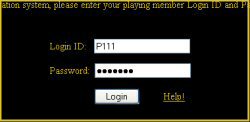 The opening screen will ask you to enter your "Login ID" and password in the
boxes provided. This information will be given to you when you become a playing member. Both the Login ID
and password are case-sensitive so be sure to enter them carefully. Notice that the password shows up as "dots"
rather than what you typed in. This is done for your privacy. Press the "Login" button to continue to the
Reservations screen.
The opening screen will ask you to enter your "Login ID" and password in the
boxes provided. This information will be given to you when you become a playing member. Both the Login ID
and password are case-sensitive so be sure to enter them carefully. Notice that the password shows up as "dots"
rather than what you typed in. This is done for your privacy. Press the "Login" button to continue to the
Reservations screen.
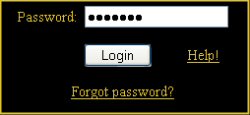 If the system didn't recognize your login ID or password, a screen will appear displaying an error message and
fields to enable another attempt. Re-enter your ID and password and press "Login". If you don't remember your
password, select the "Forgot Password?" link and the system will send it to the email address we have on file for you.
If the system didn't recognize your login ID or password, a screen will appear displaying an error message and
fields to enable another attempt. Re-enter your ID and password and press "Login". If you don't remember your
password, select the "Forgot Password?" link and the system will send it to the email address we have on file for you.
Entering Reservations:
- The Reservations screen displays all reservations from the current day forward. Each entry will display the date and day of the week, the name of the person reserving the time, the start and stop times of the period reserved and, optionally, a short comment. The reservation(s) that you have entered will be highlighted in yellow. Use the "slider" on the right of the list to scroll through the list.
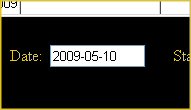 Begin by entering a date in the "Date" field in the format "YYYY-MM-DD". You will delete the characters
pre-loaded in the box and replace them with the reservation date. Here, the example displays the date for
"May 10, 2009".
Begin by entering a date in the "Date" field in the format "YYYY-MM-DD". You will delete the characters
pre-loaded in the box and replace them with the reservation date. Here, the example displays the date for
"May 10, 2009".
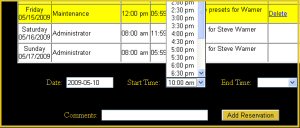 Select session "Start" and "End" times from the drop-down lists that appear in their respective fields. You can
reserve time in half-hour increments. The "End" time must be greater than the "Start" time.
Reservation times are within a single day. If it is necessary to reserve time over several
days, a new reservation must be entered for each day. If a reservation overlaps an existing one, an error message
will be displayed and the reservation will not be added.
Select session "Start" and "End" times from the drop-down lists that appear in their respective fields. You can
reserve time in half-hour increments. The "End" time must be greater than the "Start" time.
Reservation times are within a single day. If it is necessary to reserve time over several
days, a new reservation must be entered for each day. If a reservation overlaps an existing one, an error message
will be displayed and the reservation will not be added.
- You can enter a short message in the "Comments" field. This is particularly useful for the maintenance technicians to describe reasons for down time and/or non-working components of the instrument. The system administrator can use this field to describe blocks of time reserved for concerts or reservations made on behalf of members that do not have Internet access.
- When finished, select the "Add Reservation" button to save the request. The list will refresh showing the new reservation.
Error Mesages:
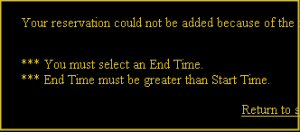 If there are problems with the information entered for a reservation, the system will display a screen with one or
more error messages. Select the "Return to Scheduler" link and re-enter the reservation with the corrected information.
If there are problems with the information entered for a reservation, the system will display a screen with one or
more error messages. Select the "Return to Scheduler" link and re-enter the reservation with the corrected information.
Deletions/Changes:
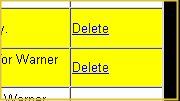 You have the ability to delete a reservation that you created by selecting the "Delete" link in the right-most
box of the list entry. The list will refresh minus the deleted reservation. Because entering a reservation is so simple, there is no separate "edit" function to change an existing reservation.
If you would like to change an existing reservation, first delete it and then re-enter it with the new information.
You have the ability to delete a reservation that you created by selecting the "Delete" link in the right-most
box of the list entry. The list will refresh minus the deleted reservation. Because entering a reservation is so simple, there is no separate "edit" function to change an existing reservation.
If you would like to change an existing reservation, first delete it and then re-enter it with the new information.
Copyright © 2009. Detroit Theatre Organ Society. All rights reserved.